
How to make a product demo video in four steps
With My Feature Flow, a demo video starts from your real product — a screen recording, screenshots or product photos — and you stay in control of the plan.
The four steps, on a real demo video
Four screenshots of Stockwren, a made-up inventory app for small shops, and one line about what it does went in. The plan was reviewed and approved, and this demo came out.
What went in
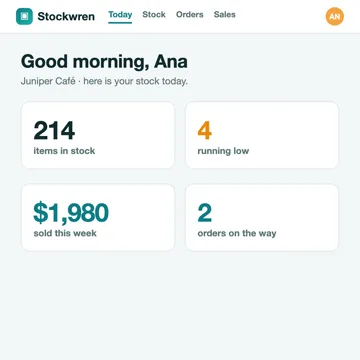
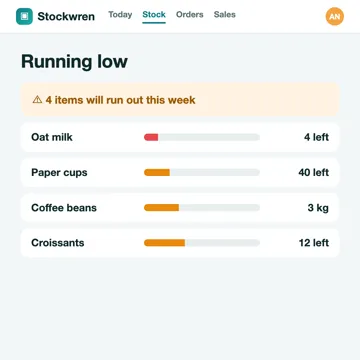
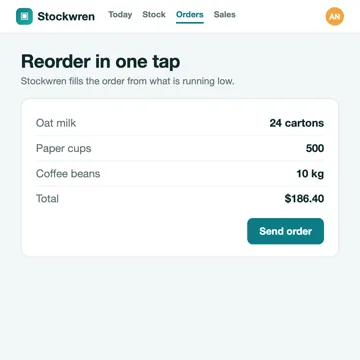
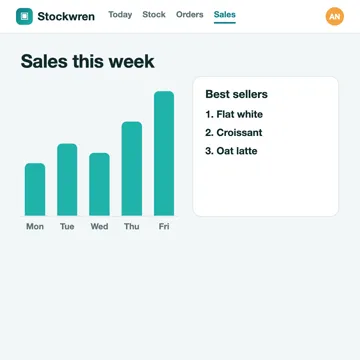
The four screenshots that went in, as they were uploaded.
Stockwren keeps a small shop stocked: see what is running low, reorder in one tap and watch the week of sales.
What came out
Made in My Feature Flow on the Free plan, from a made-up product. Paid plans have no watermark.
What a good demo video does
Shows the real product
Viewers trust what they can see working, so the video is built from your own screens rather than mock-ups.
Follows one clear story
The AI Director plans scene by scene, so each step of the workflow gets its moment and its narration.
Guides the eye
Zooms, pans, highlights and callouts point at the click or result that matters on each screen.
Fits where it will play
Pick the format and one of 4 shapes (16:9, 1:1, 4:5, 9:16) for your website, a launch or social media.
The four steps
Bring your product
Record in a supported desktop browser, upload a WebM, MP4 or MOV recording, or add screenshots or product photos.
The AI Director plans the video
It writes the narration and plans each scene — the zooms, pans, highlights and captions — from what is on screen.
You review and approve
Edit the script and the scenes before anything is voiced or rendered. Manual plan edits are not metered. AI-assisted revisions use credits.
Render and download
Narration and rendering run after you approve, and the finished video is ready to download from your workspace.
Good to know
- The AI plans the edit; you approve it. Nothing is voiced or rendered until you do.
- The Free plan gives you 160 credits to start, so you can try it, and Free videos carry a watermark.
Questions
How long should a demo video be?
Long enough to show one workflow clearly. Each plan has its own maximum length, shown when you create the video.
Can I change the script?
Yes, at plan review, before anything is voiced. Manual plan edits are not metered. AI-assisted revisions use credits.
What if I only have screenshots?
Use the screenshots option: add your screens in order and the plan is built from them.
Make your first demo video
Start free and see the AI Director’s plan for your own product.