
Turn a screen recording or screenshots into a narrated video
Upload a WebM, MP4 or MOV recording, record in a supported desktop browser, or add screenshots. You get a voiceover, captions and keyframed zooms, and you approve the plan first.
From a silent screen recording to a narrated video
We recorded 38 seconds of Pennyloft, a made-up expense app: no voice, no editing. The video below added the narration, the captions, zooms that follow each click, and a title and closing card.
What went in
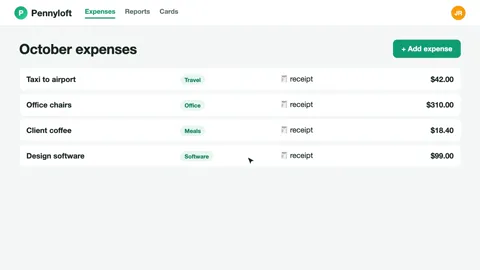
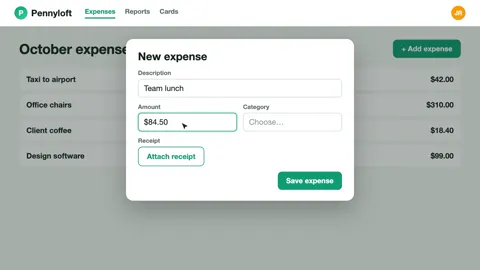
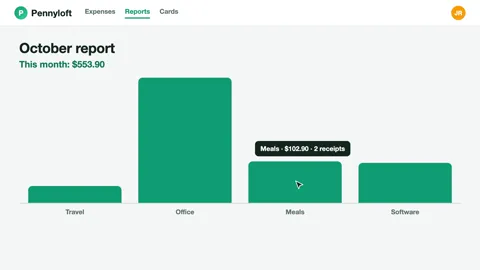
Three frames of the 38-second recording that went in: no voice, no captions, no zoom.
Pennyloft is an expense app: add an expense, attach the receipt and see the month at a glance.
What came out
Made in My Feature Flow on a paid plan, from a made-up product.
What changes in your recording
A voiceover added to your recording
Spoken audio is transcribed, and the AI Director writes a narration from what happens on screen. You edit it before it is voiced.
Captions
With subtitles on, captions are drawn into the video, and the Videos page gives .srt and .vtt subtitle files for a finished video.
Zooms and pans
Keyframed camera moves follow the clicks and screens that matter, so viewers are never lost on a full desktop.
Screenshots to video
No recording? Arrange product screenshots into a video plan, then review the script and how each screen is presented.
From recording to video in four steps
Bring your product
Record in a supported desktop browser, upload a WebM, MP4 or MOV recording, or add screenshots or product photos.
The AI Director plans the video
It writes the narration and plans each scene — the zooms, pans, highlights and captions — from what is on screen.
You review and approve
Edit the script and the scenes before anything is voiced or rendered. Manual plan edits are not metered. AI-assisted revisions use credits.
Render and download
Narration and rendering run after you approve, and the finished video is ready to download from your workspace.
Good to know
- Recording works in a supported desktop browser; on a phone, upload a recording instead.
- The Free plan gives you 160 credits to start, so you can try it, and Free videos carry a watermark.
Questions
Which recordings can I upload?
WebM, MP4 or MOV files. The usual length and safety checks apply to every upload.
Do I have to talk while I record?
No. If you speak, it is transcribed and used for the script; if you do not, the narration is written from what is on screen.
Can I turn screenshots into a video?
Yes. Choose the screenshots option, add your screens in order, and review the plan before it renders.
Bring a recording you already have
Upload it or record a new one, and approve the narrated plan before anything renders.